 TidyBird
Pick one corner of your camera roll.
Old screenshots are an easy first pass. Open TidyBird, tap Open my photos, and choose the Photos access you want to grant. Limited access lets you clean just the photos you share.
In Clean, tap the filter button and choose Photo types → Screenshots. For a trip instead, choose a year and city or region. Place filters use the location saved with each photo. You can also filter for favorites, still photos, Live Photos, and panoramas.
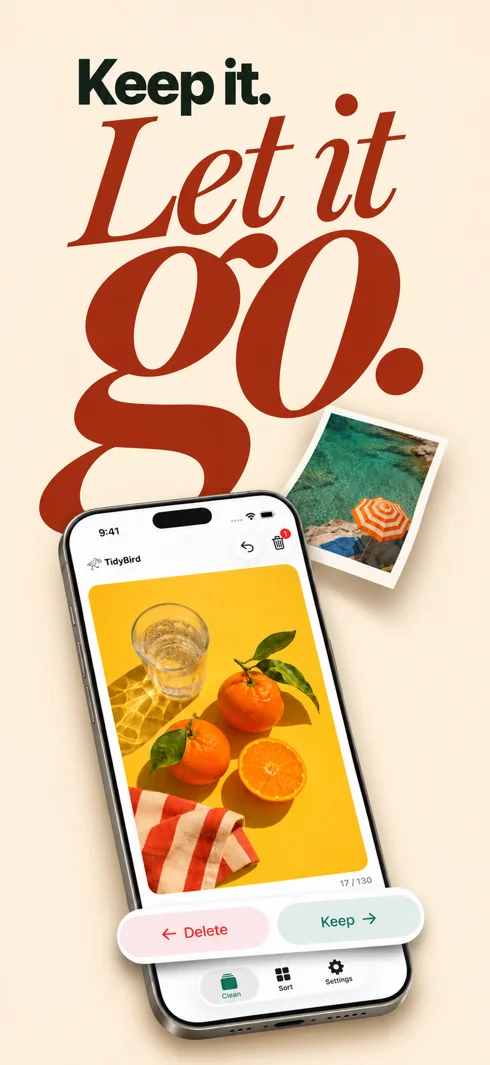
Keep your favorites. Review the rest.
Swipe right to keep a photo and move on. Swipe left to set one aside in TidyBird’s Trash. The on-screen Keep and Delete buttons do the same thing. Use Undo to reverse your latest decision.
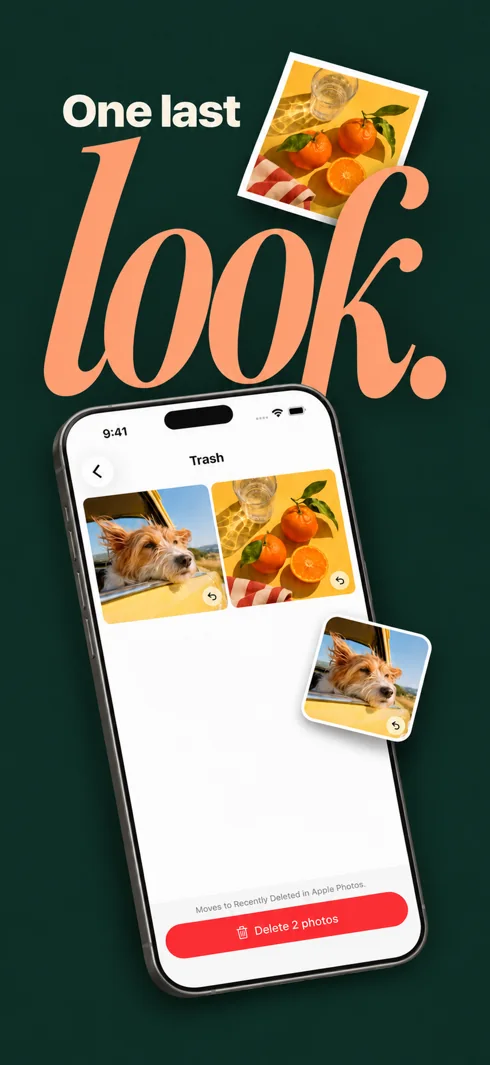
Open the trash can when you’re ready. Tap a thumbnail for a full-size look, or return a photo to your keepers. Confirm the batch with Apple to move the selected photos to Recently Deleted in Apple Photos. You can still recover them there while Apple retains them.
Give the keepers an Apple Photos album.
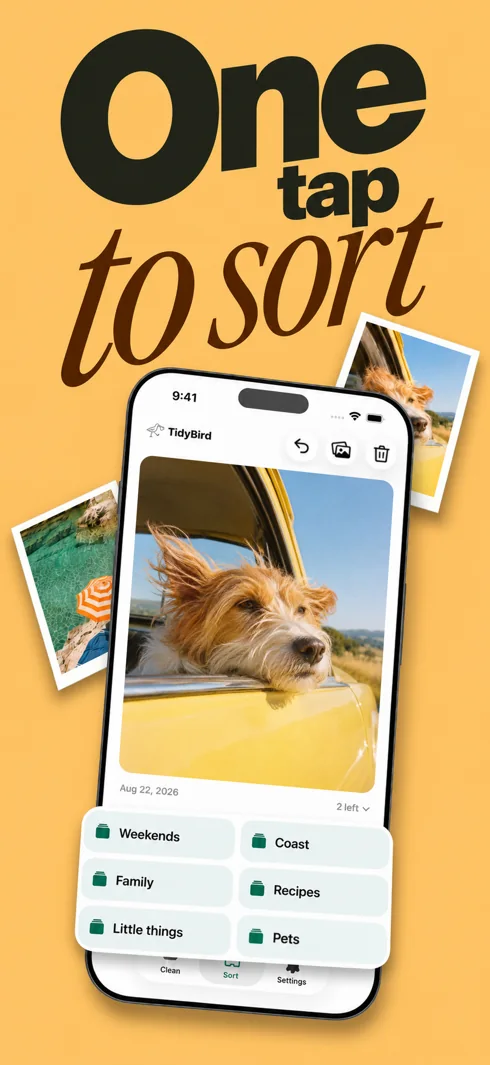
Open Sort with full Photos access. It starts with photos outside your personal albums. Tap an empty tile to choose an album you already use, or create one with the plus button. You can set up to six destinations at a time.
Tap a named tile to file the current photo. Press and hold the tile to peek inside the album. The same album appears in Apple Photos, and the original stays in your library. Swipe right to leave a photo unsorted. Later, tap the remaining-photo count and choose Review unsorted to return to it.
Leave the rest for tomorrow.
TidyBird remembers your choices on your iPhone, including photos waiting in Trash. Open Settings → Achievements to see sorting and cleanup milestones or replay a badge celebration.
The cleanup total measures the known size of photos you’ve confirmed for deletion. Recently Deleted and your iCloud settings affect when storage becomes available, so the total can differ from the space shown in iPhone Settings.